Section Manager

Google Docs™ add-on

Remove large sections of text. Manage your document's structure.

Every heading in your document, in one panel. Delete a section and everything beneath it goes too — drag it, re-level it, or bring it back from History exactly where it was.

Only sees the document you have open Your document never leaves Google Free to start

See it work

Two minutes, start to finish.

A long report trimmed down to the sections that matter — then one of them brought straight back from History.

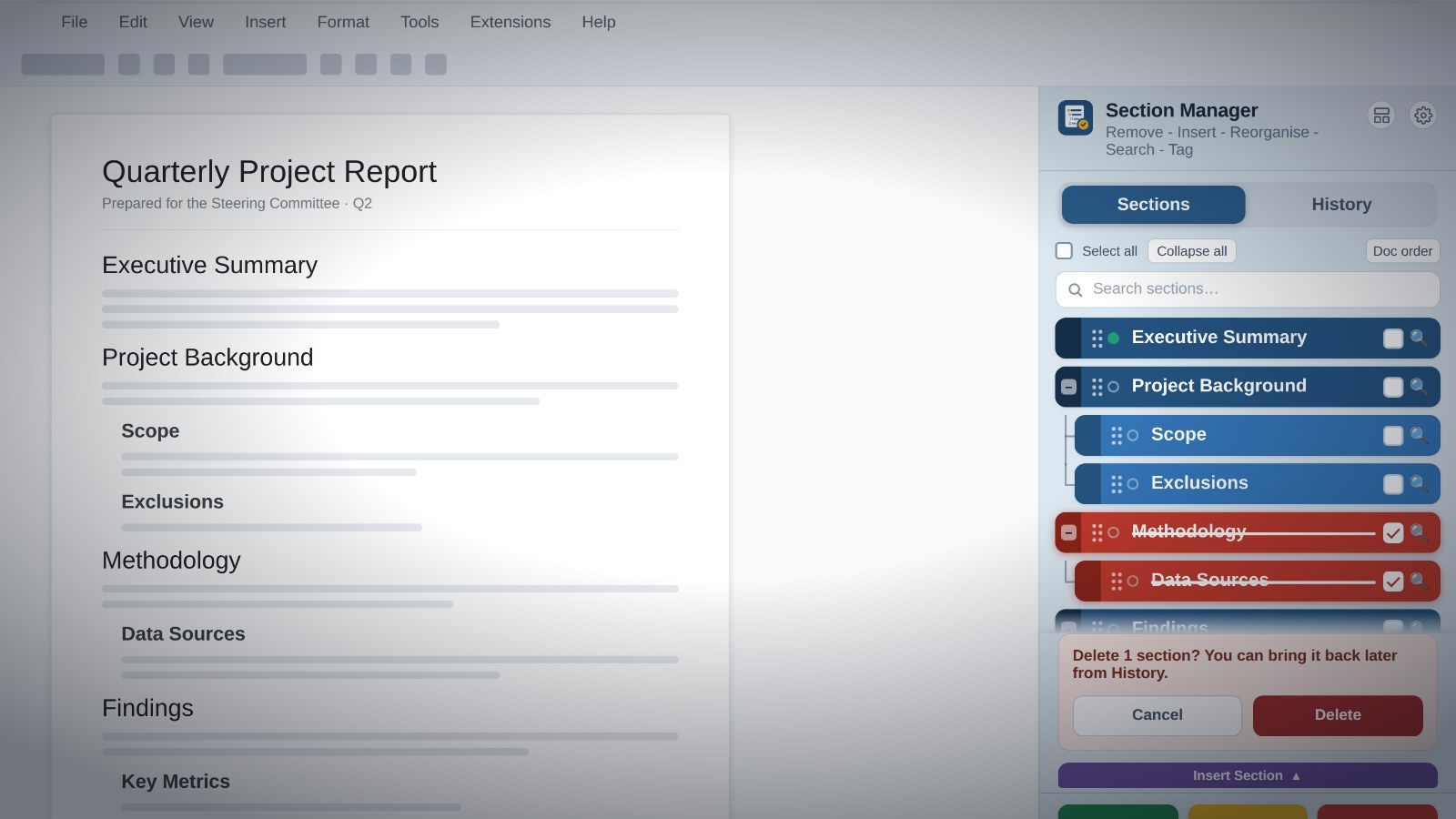
The Section Manager sidebar with two sections ticked for deletion, and the confirmation open.
Section Manager — product demo 2:04
No sign-up to watch Recorded in a real document Captions included

Try it — nothing to install

The actual sidebar, running in your browser.

The real sidebar, down to the row colours. Tick a section, press Delete, then bring it back from History.

The last four lines were only ever bolded or underlined — the kind every real document has. ⚙ → Scan for headings turns them into real ones.

Quarterly Project Report Live demo
Quarterly Project Report
Prepared for the Steering Committee · Q2

Deleting a heading takes its sub-sections with it. Press Undo on the toast, or open History and press Insert — either way it returns to its original position, not the end of the document.

Make it yours

Pick a palette. The sidebar above changes.

Six heading levels, six colours — all yours to set. Choose one and scroll up: the live demo is already wearing it.

Heading colours
Switches
Section Manager
Title#14263B
Heading 1#235280
Heading 2#4C7FAC
Heading 3#8CB4D6
Refresh#1E824C
Delete#C0392B
Settings — colours Fifteen slots, each with a colour wheel and a hex field, plus a generator that builds the whole set from one colour.
Section Manager
SectionsHistory
Executive Summary
Scope
Exclusions
Findings
RefreshClearDelete
Dark mode The chrome goes dark; your chosen heading and button colours stay exactly as you set them.

See it on the sidebar ↑

Colour choices and dark mode are Pro. Everything else on this page is free.

What it does

The outline is the interface.

It reads the headings already in your document. Nothing to configure, nothing to learn.

All features →

Every heading, properly nested

Heading 1 to 6 plus Title, each in its own colour, indented to match. Collapse a branch you're not using.

Headings out of a document that has none

Headings that were only ever bolded or enlarged get spotted and offered up as real ones. An outline out of a document that never had one.

Search, sort and jump

Filter by name, sort by document order or A–Z, and click the magnifier to send your cursor straight there.

A guided tour, whenever you want it

Twelve steps, each control highlighted as it's explained. Restartable whenever you want it.

Before and after

It tells you first. Then it remembers.

Nothing goes without a warning, and nothing goes for good.

Section Manager
Delete 2 sections? You can bring them back later from History.

⚠️ This includes an image. Images are not preserved in History — if you bring this section back later, the image will be permanently gone.
CancelDelete
Confirmation, with warnings If the selection contains a table or an image, it says so before you commit — because those are the two things that don't survive a round trip.
Section Manager
SectionsHistory
Methodology2m ago
Limitations2m ago
Appendix A1h ago
ClearInsert
History Everything you've removed, newest first, with how long ago. Tick and press Insert to put them back where they were.

Six levels, your colours

You read the structure before you read a word.

Each level has its own shade, darkest at the top — so you see the shape of a hundred-heading document at a glance. On Pro, one base colour regenerates the whole ramp.

Heading 1#235280
Heading 2#4C7FAC
Heading 3#8CB4D6
Heading 4#C3DAEC
Heading 5#E1EDF6
Heading 6#F3F8FB

Or set any of the fifteen slots — seven heading levels and eight buttons — individually, by colour wheel or hex code. Try it on the demo above →

The obvious question

Google Docs already has an outline. Why this?

The built-in outline is for getting somewhere, and it's very good at that. It has never been able to change the document.

Capability
Built-in outline
Section Manager
See every heading, nested
Jump to a heading
Delete a heading and everything under it
Delete several sections at once
Bring a deleted section back, in place
Change a heading's level
Drag a section to reorder it
Move a branch under a different parent
Search and sort the outline
Templates, tags and numbering
Colour-code levels, dark mode

Keep using the built-in outline for navigation — Section Manager doesn't replace it and doesn't interfere with it. Open the sidebar when you need to change the structure rather than move through it.

How it works

Three steps, once.

Set it up in a couple of minutes, then it's just part of how you work.

Install

Add it from the Marketplace

Install it on your account, or let a Workspace admin deploy it across the domain. It appears under Extensions, and can open itself whenever you open a document.

Detect

Open any document with headings

The panel reads the outline straight away, colouring and nesting each level. Edit the document directly and it notices and re-syncs on its own.

Reshape

Delete, drag, re-level or tag

Tick what you don't need and confirm once. Drag a section by its handle, change a level, insert a new section, tag it, number it. Undo is on the toast; deletions wait in History.

Before you install

Questions, and the things worth knowing.

Better to read the second tab now than discover it mid-document.

What can Section Manager see?

The document you have open, and only while you're in it. The add-on requests documents.currentonly, which is scoped to the active document — it cannot list, open or read anything else in your Drive.

Where is my data stored?

In your own Google account. The section index, History and the document's tags live in the document's own properties; your settings and your templates live in your user properties. Both are Google storage.

The only things held anywhere else are a Pro licence record — the key, an anonymous installation id and any label you chose to type — and, on Pro, your organisation's shared settings. No part of your document is included in either.

What happens to a section when I delete it?

It moves to History with its text and formatting, remembering the paragraph it followed. Insert puts it back in that position — resolved against the document as it is now, so it still lands correctly even if you've edited around it since.

Images are the exception: they aren't preserved, and the add-on warns you before you confirm.

Can I reorder sections, and can I re-nest them?

Both. Drag a section by the handle at the left of its row to move it among its siblings, carrying its body text and sub-sections with it. You can also drop it under a different parent entirely, and its level is adjusted to fit where it lands.

A longer drag runs as a series of single steps with a progress bar, and finishes with an Undo button that reverses the whole move. The Level button is still there if you'd rather promote or demote without moving anything.

What are templates and tags for?

Templates are sections you write often — a risk register, a standard appendix — saved once and inserted into any document. You get 20, stored against your account, so they follow you between files.

Tags label a section's state. Two come built in — Needs review and Final — and you can define up to 12 of your own. You apply one by clicking the small dot at the left of a row and picking from the list. They're stored with the document, so anyone who opens it sees the same labels. Pro adds a set shared across your whole organisation.

Can I number the sections automatically?

Yes, and it's off until you turn it on. Numbering is set per document, and you choose how many levels deep it goes, so you can number the top two levels of a report and leave the rest alone. It stays correct as you delete, drag and re-level.

Does it work with Google Docs tabs?

Yes. It reads the tab you're currently working in.

Can I deploy it across my organisation?

Yes — a Workspace administrator can install it domain-wide from the Google Workspace Marketplace. The Teams page covers seats and shared settings, and the admin page has the scope table and the data-residency answers, written for whoever has to approve it.

Can I change the colours?

On Pro, all of them. Seven heading levels and eight buttons can each be set by colour wheel or hex code, and there's a generator: pick one colour and it builds a matching ramp plus consistent buttons, choosing white or dark text for each so everything stays readable. Try it on the demo above.

There's a dark mode too, and your colour choices carry across both themes rather than being overridden.

Is there a keyboard workflow?

Yes. Arrow keys move through the outline, Delete or Backspace selects and deselects the focused section, Enter deletes the current selection, and Escape leaves the search box.

Stop scrolling to find the end of a section.

It's free. Install it and try it on a document you're already working on.